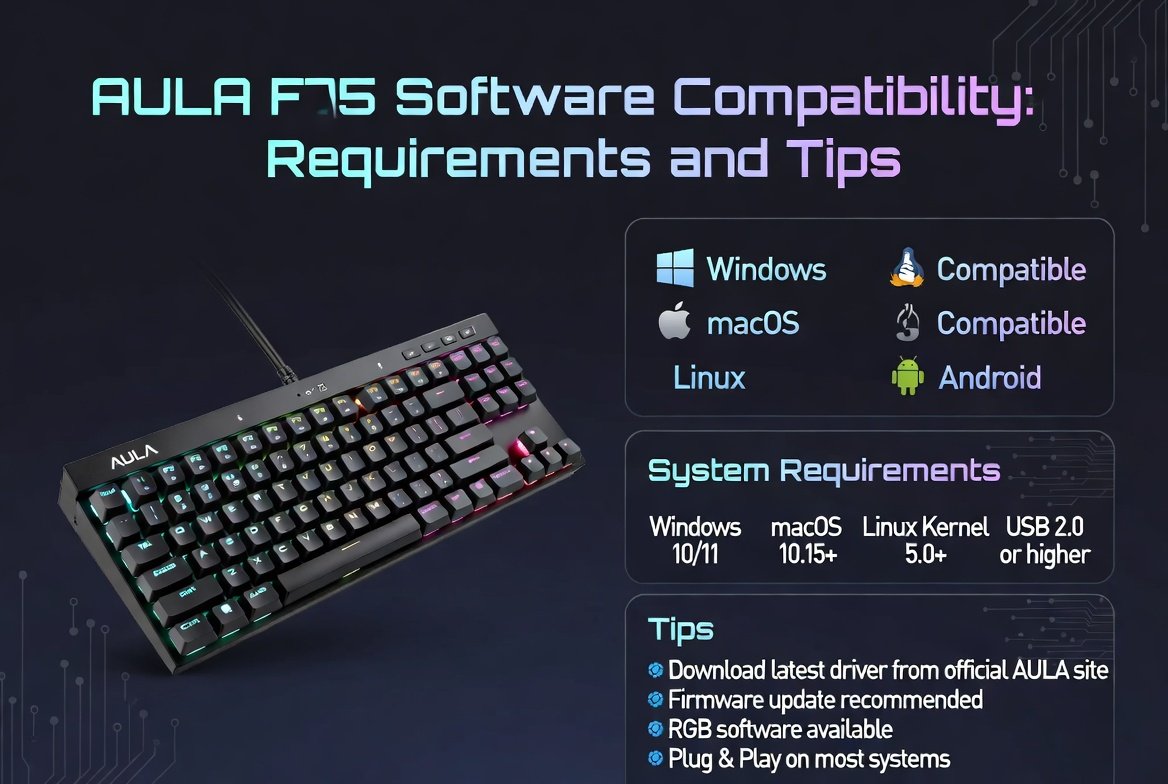
The AULA F75 is a popular mechanical keyboard known for its stylish design, responsive switches, and gamer-friendly features. However, to unlock its full potential, understanding AULA F75 software compatibility is essential. Whether you want to customise RGB lighting, remap keys, or fine-tune performance, having the right setup ensures a smooth experience.
In this guide, we’ll explore the software requirements, compatibility details, and practical tips to help you get the most out of your keyboard.
What Is the AULA F75 Software?
The AULA F75 software is a dedicated utility provided by AULA that allows users to:
- Customise RGB lighting effects
- Create macros and key bindings
- Adjust keyboard performance settings
- Save multiple user profiles
Without the software, the keyboard still works, but you’ll miss out on advanced features that enhance productivity and gaming performance.
System Requirements for AULA F75 Software
Before installing the software, ensure your system meets the basic requirements:
1. Operating System Compatibility
The AULA F75 software typically supports:
- Windows 7, 8, 10, and 11
- 64-bit systems are recommended for best performance
Note: macOS and Linux support is usually limited or unavailable. Users on these systems may need third-party tools or run Windows via virtual machines.
2. Hardware Requirements
To run the software smoothly, your system should have:
- At least 2GB RAM (4GB recommended)
- Basic CPU (Intel i3 or equivalent and above)
- USB port for keyboard connection
3. Storage Space
- Minimum 100MB of free storage for installation and updates
Key Compatibility Considerations
Understanding compatibility goes beyond system requirements. Here are important factors to consider:
USB Connectivity
The AULA F75 connects via USB. Ensure:
- Your USB ports are functioning properly
- Drivers are up to date
Driver Installation
The software may require:
- Automatic driver installation during setup
- Manual updates if issues arise
Firmware Updates
Some versions of the AULA F75 support firmware updates through the software, improving:
- Stability
- RGB synchronisation
- Key responsiveness
Common Compatibility Issues (and Fixes)
Even with the right setup, users may face occasional issues.
1. Software Not Detecting Keyboard
Fix:
- Reconnect the keyboard
- Try a different USB port
- Run software as administrator
2. Software Crashing or Freezing
Fix:
- Update to the latest version
- Close background applications
- Reinstall the software
3. RGB Settings Not Saving
Fix:
- Ensure profile is saved properly
- Check for firmware updates
- Restart the software
4. Unsupported Operating System
If you’re using macOS or Linux:
- Use a Windows virtual machine
- Consider third-party keyboard tools (limited functionality)
Tips to Improve Compatibility and Performance
To ensure a seamless experience, follow these expert tips:
Keep Software Updated
Always download the latest version from official sources to avoid bugs and compatibility issues.
Use Administrator Privileges
Running the software as an administrator can resolve many permission-related problems.
Avoid Conflicting Software
Other keyboard management tools can interfere with AULA software. Disable or uninstall them if needed.
Regularly Update Drivers
Outdated USB or system drivers can cause detection issues. Keep them updated for optimal performance.
Backup Your Profiles
Save your customised settings so you can restore them after reinstalling or switching systems.
Benefits of Proper Software Compatibility
When everything is set up correctly, you can enjoy:
- Fully customisable RGB lighting
- Enhanced gaming performance with macros
- Improved typing efficiency
- Seamless profile switching
Proper compatibility transforms the AULA F75 from a basic keyboard into a powerful personalisation tool.
Final Thoughts
Understanding AULA F75 software compatibility requirements and tips is key to unlocking the keyboard’s full capabilities. While the device works out of the box, the software adds a layer of customisation that significantly enhances the user experience.
By ensuring your system meets the requirements, addressing compatibility issues, and following best practices, you can enjoy smooth performance and advanced features without frustration.
FAQ: AULA F75 Software Compatibility
1. Is AULA F75 software available for macOS?
No, it is primarily designed for Windows. macOS support is limited.
2. Do I need the software to use the keyboard?
No, but you’ll need it for advanced features like RGB customisation and macros.
3. Why is my AULA F75 not detected by the software?
This could be due to USB issues, outdated drivers, or lack of administrator permissions.
4. Can I use third-party software with AULA F75?
Yes, but compatibility may be limited compared to the official software.
5. How often should I update the software?
Check for updates regularly to ensure optimal performance and compatibility.

